Are you getting the most out of your computer at home or
at work? We know your time is valuable, and don't let a computer
problem waste any of your time, please do let us to help you to resolve
any of the computer problems you have encountered. We will have it up
and running in no time.
It's a frustrating feeling when your computer is slow
and down, and you're often left wondering what you can do to improve
the performance of your PC. Did you know that there are 4 easy simple
ways you can do on a regular basis to speed up your PC according to
Microsoft?
1. Free up disk space: Use Disk
Cleanup tool built in with operating system to remove temporary
Internet files, downloaded program files, files in the Recycle Bin,
Windows temporary files, optional Windows components that you don't
use, the installed programs that you no longer use.
How to use Disk Cleanup utility:
Click Start > All Programs > Accessories > System Tools > Disk Cleanup

Scroll through the content of the Files to delete list in the Disk Cleanup for dialog box
Uncheck those boxes for files that you don't want to delete, and then click OK
Click Yes when prompted to confirm the deletion
2. Speed up access to data: The
common tool to speed up the overall performance of your system is Disk
Defragmenter, which is a Windows utility that consolidates fragmented
files and folders on your computer's hard disk so that earch occupies a
single space on the disk.
When to run Disk Defragmenter: It is recommended to run the tool at
regular basis. Also it would be wised to run when you add a large
number of files, and your free disk space is 15% or less or you have
installed new programs.
How to use Disk Defragmenter: Start > All Programs > Accessories > System Tools > Disk Defragmenter
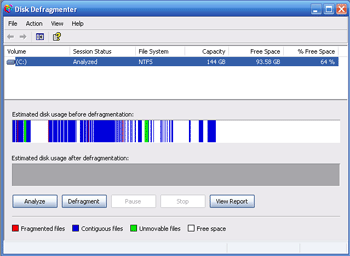
Click Analyze to start the Disk Defragmenter.
Click the Close button on the title bar of the window when Defragmenation is completed.
3. Detect and repair disk errors:
In addition to running both Disk Cleanup and Disk Defragmenter to
optimize the performance of your computer, you can use the Error
Checking utility to check files stored on the hard disk.
How to run the Error Checking utility:
1. Close all open files.
2. Click Start, and then click My Computer.
3. In the My Computer window, right-click the hard disk you want to search for bad sectors, and then click Properties.
4. In the Properties dialog box, click the Tools tab.
5. Click the Check Now button.
6. In the Check Disk dialog box, select the Scan for and attempt recovery of bad sectors check box, and then click Start.
7. If bad sectors are found, choose to fix them.
4. Protect your computer against spyware:
Spyware and adware collect personal or internet surfing habit
information without letting you know and your permission. Many of these
spywares can put you and your confidential information at risk. As
recommended, you should periodically update your windows with new
windows patches. You should also turn on the firewall prevent any
unwanted intruders. It is important to have an antivirus software
installed on your machines. Below are list of free anti-spyware
software programs that many people used today.
To start Windows update manually: Launch the Internet Explorer (Browser) > Tools > Windows Update
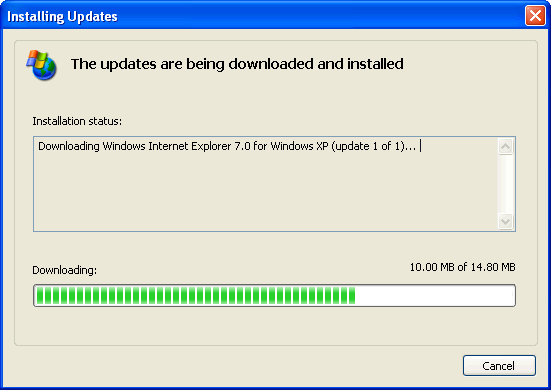
To turn on the Automatic Updates features on Windows: Start >
Control Panel > Double Click on "Automatic Updates" > Set day
and time for Windows to automatically download recommended updates for
your computer
Free edition of Antivirus software: AVG
Free adware/spyware software removal: Spybot, Adaware

